Preparing a Netboot Server
This guide covers explanation and implementation of the components required for a complete Pi Netboot capable server
Explanation
Section titled “Explanation”In order to successfully Netboot a Pi, you need a server on your network capable of serving the necessary files over the correct protocols.
There are two protocols we will be using, TFTP and NFS. For simplicity we will be hosting these together on a single machine, and calling this our ‘Netboot’ server.
Components
Section titled “Components”- DHCP Server
- DHCP (Dynamic Host Configuration Protocol) is responsible for dynamically assigning IP addresses and network configuration information to devices on a network.
- If you’re reading this you likely already know what/where your DHCP server is. If you don’t, and you’re a home user, then it’s 99% built into your router.
- We will be modifying our DHCP server settings to tell devices on the network where to look for the TFTP server.
- TFTP Server
- TFTP (Trivial File Transfer Protocol) is responsible for simple and lightweight file transfers between devices on a network, commonly used for tasks such as updating firmware or booting diskless devices.
- It’s highly unlikely you already have a TFTP server running, we will be creating a new one specifically for bootstrapping pi devices
- The TFTP server will provide the Pi with it’s boot partiton files
- We’ll be running this in a container image served via Docker 🐋
- NFS Server
- NFS (Network File System) is responsible for enabling remote access and sharing of files between networked systems in a transparent and platform-independent manner.
- Again, very unlikely you already have an NFS server. But we’ll be standing up a new bootstrap specific one anyway
- The NFS server will provide the Pi with it’s OS partition files
- Again, container image served via Docker 🐳
- Netboot client
- The Raspberry Pi itself🥧
Implementation
Section titled “Implementation”Creating a Netboot capable Server
Section titled “Creating a Netboot capable Server”Typically, a server (of any kind) would run on an always-on machine within your network. However since we are starting from zero here and assuming there currently is no server, we will be running our initial bootstrap server via Docker on our Linux machine/VM.
services:  # TFTP server for hosting boot files  pi-tftp:    image: andrewkidd/tftp-server    container_name: pi-tftp    network_mode: host    profiles:      - netboot      - debian-netboot    volumes:      - ./README.md:/var/tftpboot/test.txt:ro      - netboot-boot-data:/var/tftpboot    ports:      - 69:69/udp    healthcheck:      test: ["CMD", "test", "-f", "/var/tftpboot/test.txt"]      interval: 1m      timeout: 5s      retries: 0      start_period: 1m    restart: unless-stopped
  # NFS server for hosting the OS files  pi-nfs:    image: andrewkidd/nfs-server    container_name: pi-nfs    privileged: true    profiles:      - netboot      - debian-netboot    env_file:      - .env    volumes:      - ./README.md:/mnt/nfsshare/test.txt:ro      - netboot-os-data:/mnt/nfsshare    ports:      - 111:111      - 111:111/udp      - 2049:2049      - 2049:2049/udp      - 32765-32768:32765-32768      - 32765-32768:32765-32768/udp    healthcheck:      test: ["CMD", "test", "-f", "/mnt/nfsshare/test.txt"]      interval: 1m      timeout: 5s      retries: 0      start_period: 1m    restart: unless-stopped
volumes:  netboot-boot-data:  netboot-os-data:
Then run the dockerfile
cd ~git clone https://github.com/andrewiankidd/project-iluvatar.gitcd project-iluvatar# Load core NFS kernel module on the host (needed so the kernel exposes NFS facilities used by the server container)sudo modprobe nfs# Load the kernel NFS server module (the container orchestrates exports, but the host kernel actually serves them)sudo modprobe nfsd# Free TCP/UDP 111 and related RPC ports so the containerized NFS server can bind cleanlysudo systemctl stop rpcbindsudo systemctl stop rpcbind.socket# Start the TFTP + NFS (+ HTTP for configs) stack in containerssudo docker compose -f ./src/bootstrap/netboot/docker-compose.yml upThe TFTP and NFS servers will now be running 🎉
DHCP Configuration
Section titled “DHCP Configuration”Now the TFTP server is running, we need to make it known to your local network. In order to do this you must update your DHCP server configuration.
You can get really advanced with this - so I will defer to the linuxserver.io documentation for more info should you want to research more.
But in my testing, I found that all the Pi really cares about is OPTION 66, which defines your provision server, which in our case is our TFTP server.
So with that in mind, I did the following:
- SSH’d to my router…
Terminal window ssh root@192.168.1.1 - opened dnsmasq.conf…
Terminal window nano /etc/dnsmasq.conf - appended the following lines (where 192.168.1.66 is the IP of the machine running Docker):
/etc/dnsmasq.conf # define option 66 / tftp-serverdhcp-option=66,192.168.1.66 - restarted dnsmasq
Terminal window /etc/init.d/dnsmasq restart
You should be able to test this change with an nmap dhcp discovery request
root@ubuntuvm:~$ nmap --script broadcast-dhcp-discoverStarting Nmap 7.80 ( https://nmap.org ) at 2000-01-01 00:00 UTCPre-scan script results:| broadcast-dhcp-discover:| Response 1 of 1:| IP Offered: 192.168.1.249| DHCP Message Type: DHCPOFFER| Server Identifier: 192.168.1.1| IP Address Lease Time: 2m00s| Renewal Time Value: 1m00s| Rebinding Time Value: 1m45s| Subnet Mask: 255.255.255.0| Broadcast Address: 192.168.1.255| Router: 192.168.1.1| Domain Name: kidd.local| Domain Name Server: 192.168.1.3, 192.168.1.1|_ TFTP Server Name: 192.168.1.66\x00WARNING: No targets were specified, so 0 hosts scanned.Nmap done: 0 IP addresses (0 hosts up) scanned in 3.60 secondsAs you can see on the last line of the dhcp script output, the TFTP server is now defined and is the IP of the machine running Docker 🎉
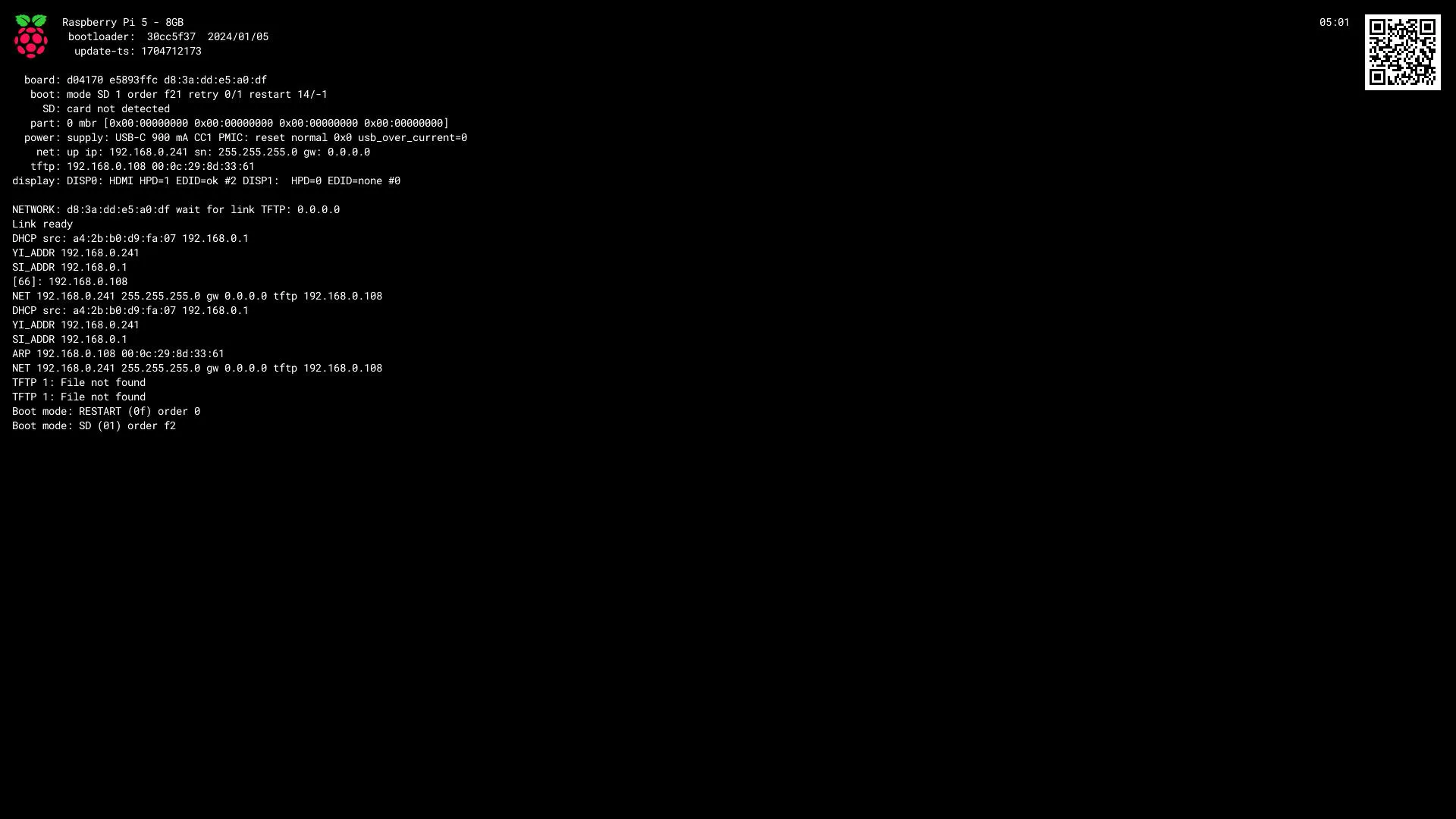
If you power up your Pi again, you should see it query the TFTP server for files (TFTP 1: file not found)
Next Steps
Section titled “Next Steps”So now we have a Pi looking to boot from network, and a Server looking to fulfill that need.
Next we need to provide the Boot + OS files to the server!