Booting For The First Time
This part of the guide isn’t essential. We are just going over the boot process end to end.
Explanation
Section titled “Explanation”Lots of moving parts and lots of experimentation to get this working reliably and in a way I understand, let’s review the boot process and end to end and then break it down.
Components
Section titled “Components”- NFS Server exposing OS files
- OS files are patched to load files from NFS share
- OS files are patched to include a custom unattended configuration script
- TFTP Server exposing boot files
- Boot files are patched to load OS from NFS share at boot
- Boot files are also patched to execute custom unattended configuration script at boot
- DHCP server configured with option 66 / tftp-server
- Your networks DHCP server is configured to announce your TFTP servers IP
- Pi Configured with Netboot
- A Raspberry Pi 5 with netboot as an enabled option in the eeprom
Implementation
Section titled “Implementation”With the Pi connected to the network, let’s boot it.
Turn on the Pi!
Review
Section titled “Review”Step by step breakdown of what happens in the video
Network Initialization
Section titled “Network Initialization”The Pi boots up and immediately initializes networking, a brief pause occurs as it contacts the network and obtains an IP address.
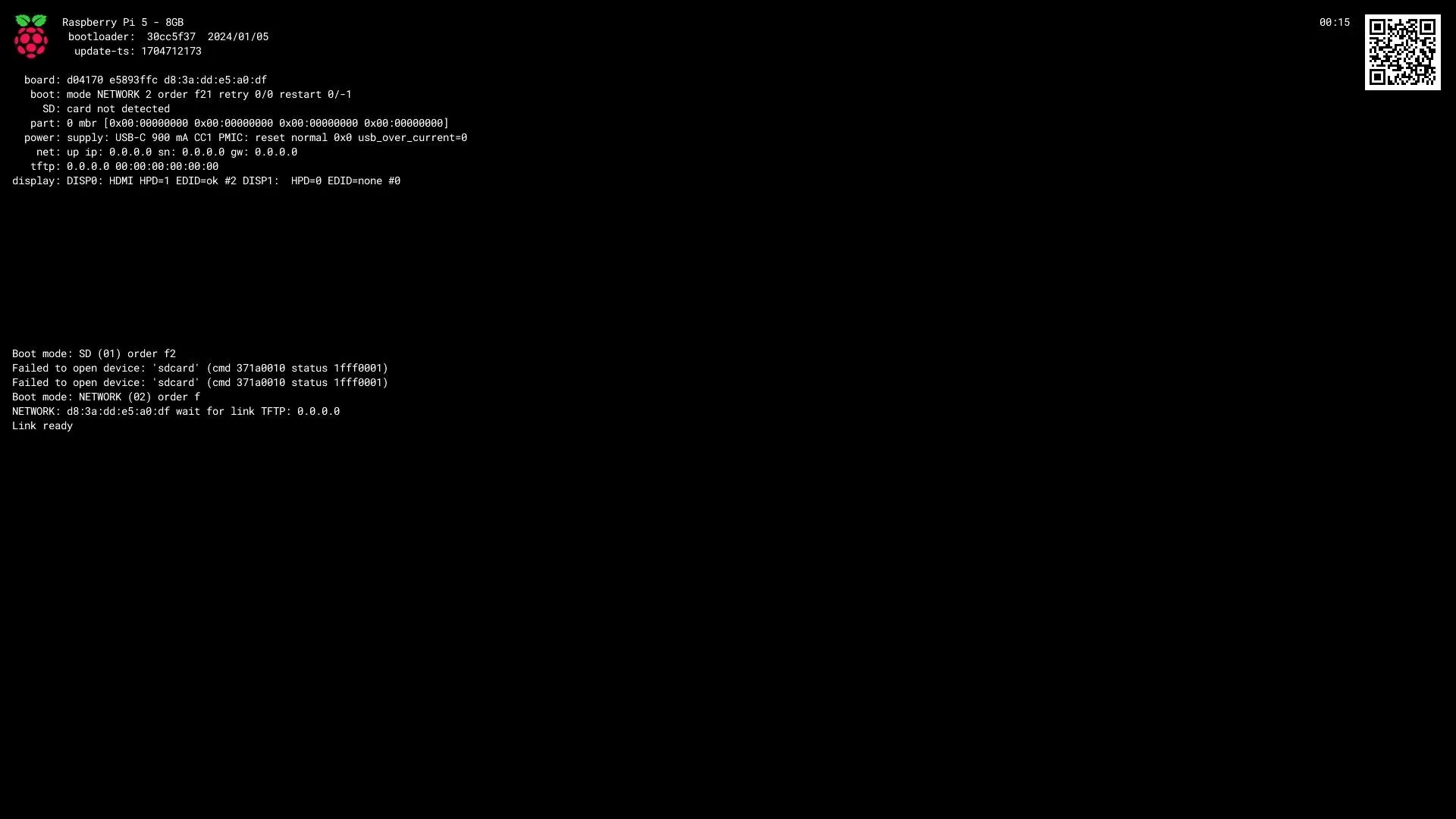
Netboot Initialization
Section titled “Netboot Initialization”Once network has initialized, the Pi will display some DHCP information
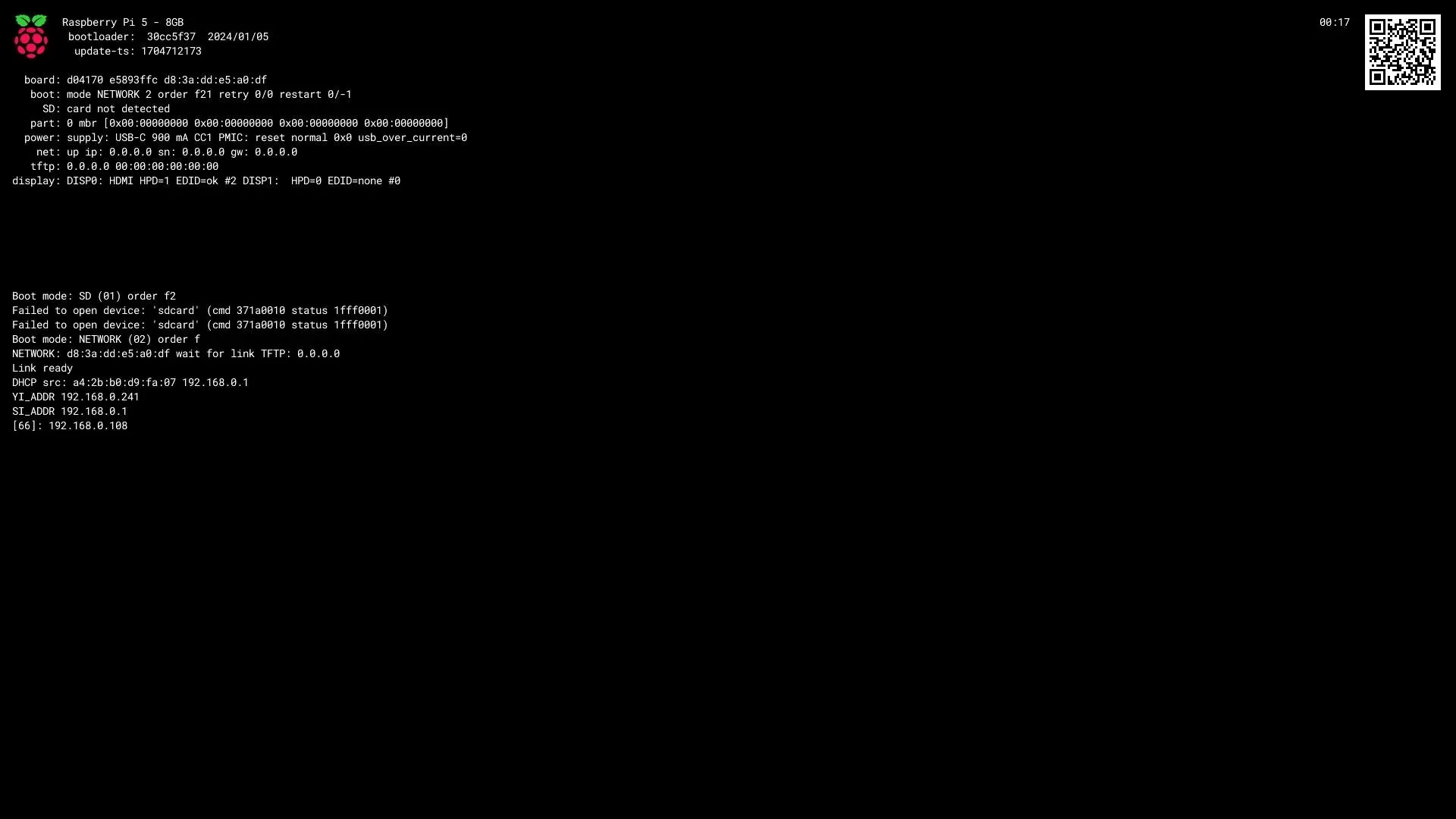
| Message | Meaning |
|---|---|
| DHCP src | IP address and MAC address of DHCP server |
| YI_ADDR | IP address assigned to Pi by DHCP server |
| SI_ADDR | IP address of DHCP server |
| [66] | IP of TFTP server, as defined by DHCP server option 66 |
| NET | Summary of Network settings (Pi IP, Netmask, Gateway and TFTP IP) |
| ARP | ARP data of the TFTP server (IP and MAC) |
Boot files loaded from TFTP server
Section titled “Boot files loaded from TFTP server”The networking information at the top of the screen is now populated with this information going forward, and the Pi will now start requesting boot files from the TFTP server, starting with config.txt
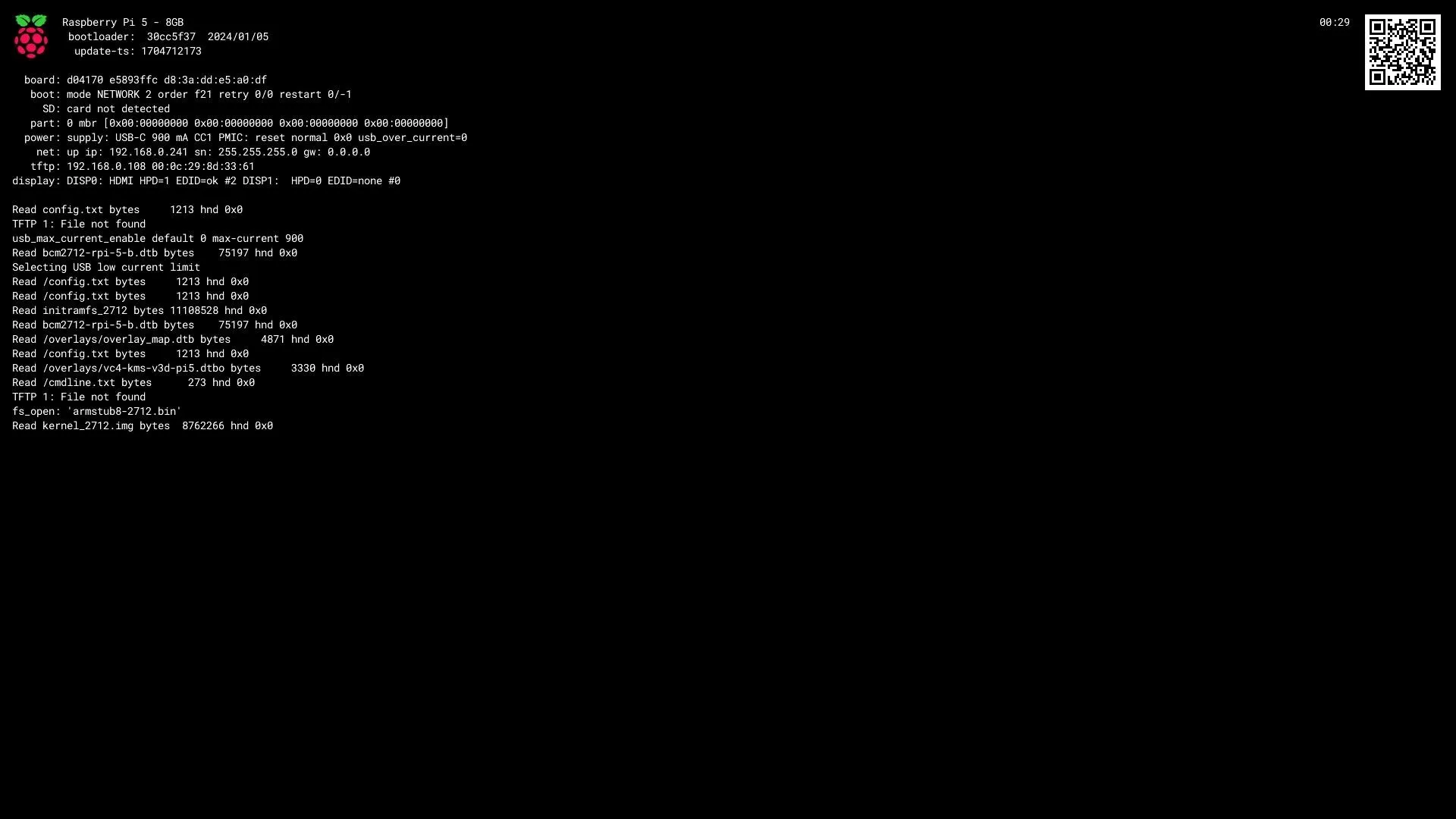
System boots into bootloader
Section titled “System boots into bootloader”The system will now load the files previously retrieved from the TFTP server, including our customized cmdline.txt file which mounts the NFS server, and runs the apply-config.sh configuration script which in turn launches /sbin/init (systemd)
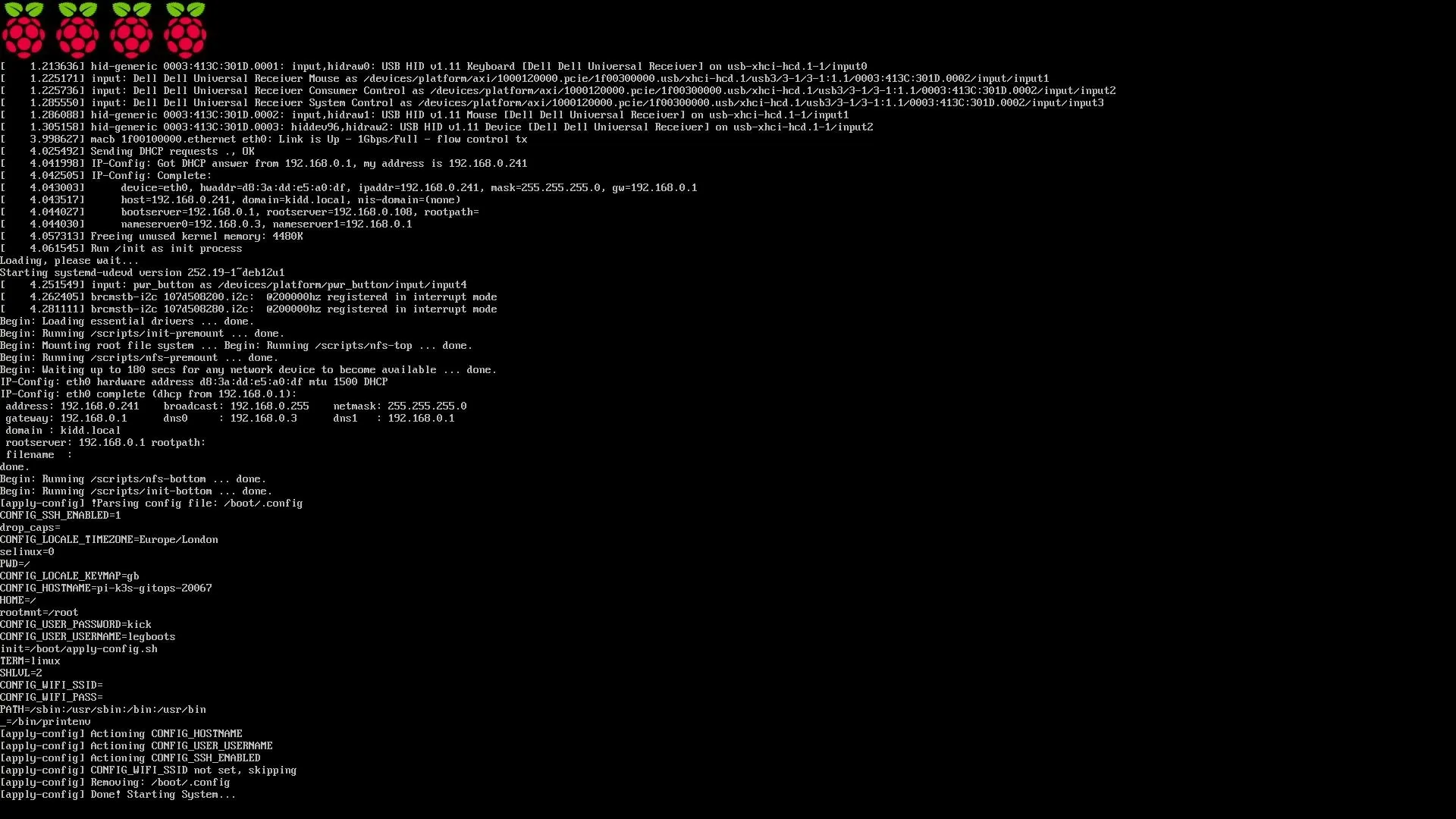
System boots into OS
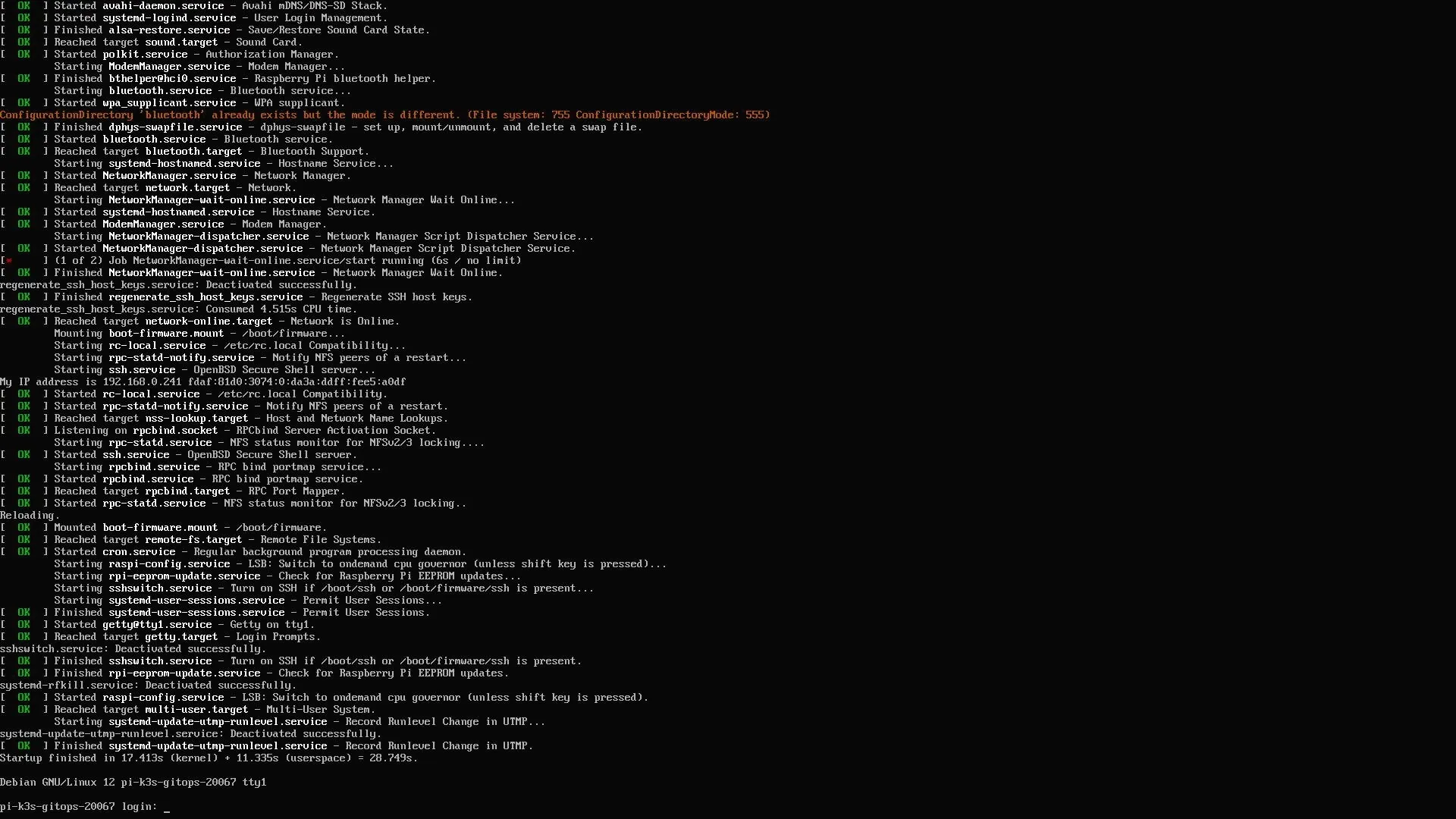
Section titled “System boots into OS”And finally the OS init kicks in, and we are dropped at the login screen with our predefined hostname and credentials 🎉
Next Steps
Section titled “Next Steps”While I am happy to have been able to achieve this, coming from basically zero knowledge beforehand - I do not feel like it seems a very stable process.
Hacking at the extracted filesystem feels like a good exploratory exercise, but isn’t something I’d like to rely to work on long term. Preferrably I could get a declaritive OS like Nix or TalOS going, but at this time they are not supported by the Pi 5.
In the meantime, we can at least use an OS that supports some declaritive config.